
To register new patients, follow these steps (to look up an existing patient, click here):
Click Reg/ADT from the toolbar menu.
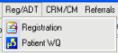
Select Registration from the menu.
The Patient Lookup screen will then be displayed, as shown below.
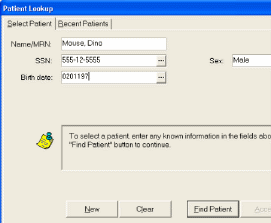
Enter the patient's name in the Name/MRN field.
Enter the patient's Social Security Number (SSN) in the SSN field.
Enter the patient's birth date in the Birth date field.
Enter the patient's sex in the Sex field.
Click the New button.
The Name edit screen will then be displayed, as shown below.
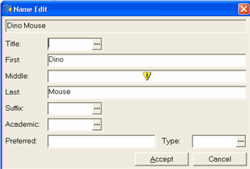
Complete any relevant fields (e.g., middle name, preferred name (nick name), etc.).
Click Accept.
The Registration screen will then be displayed.
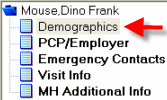
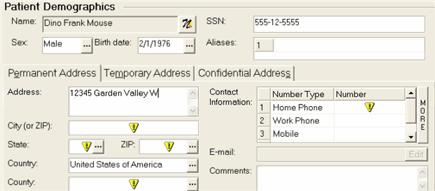
Select Demographics from the menu.
Complete the relevant
Patient Demographic fields. Those
fields with an exclamation point  are recommended to be
completed.
are recommended to be
completed.
Click Next at the bottom of the screen to continue to complete additional information or click Finish to end the new patient registration process.

Click the following links to learn how to add:
Additional patient information (patient type, status, etc.).
Print this topic.
